
Send one
There is no “create broadcast” button. A broadcast is a bulk template send, started from wherever your audience already is:- From Contacts: tick the contacts you want (or select all with your current filters applied). The selection toolbar appears with Send WhatsApp template. The same toolbar also offers Export CSV and delete.
- From a segment: open the segment’s page and use its Send WhatsApp template button to message the whole segment.
- From the board view: send to everyone in a funnel-stage column.

1
Select your audience
Tick contacts in Contacts, open a segment, or pick a funnel-stage column in the board view.
2
Click Send WhatsApp template
The dialog lists your templates, searchable and filterable by category, buttons, and language. Only an Approved template can be sent.
3
Fill in variables and media
If the template has variables or media, you fill them once for the whole batch. Contact fields like the first name fill in per recipient automatically. A live preview shows the finished message.
4
Decide who answers the replies
This step appears only when some of the selected contacts have an open WhatsApp conversation handled by a teammate or from the WhatsApp Business app. Replies to the campaign on those threads would otherwise wait for that person. Let the AI handle them (the default) hands those conversations to the AI now, so every reply gets an answer; replying again from the WhatsApp Business app takes a conversation back. Keep them as they are leaves them with your team, and only contacts without an open conversation are answered by the AI.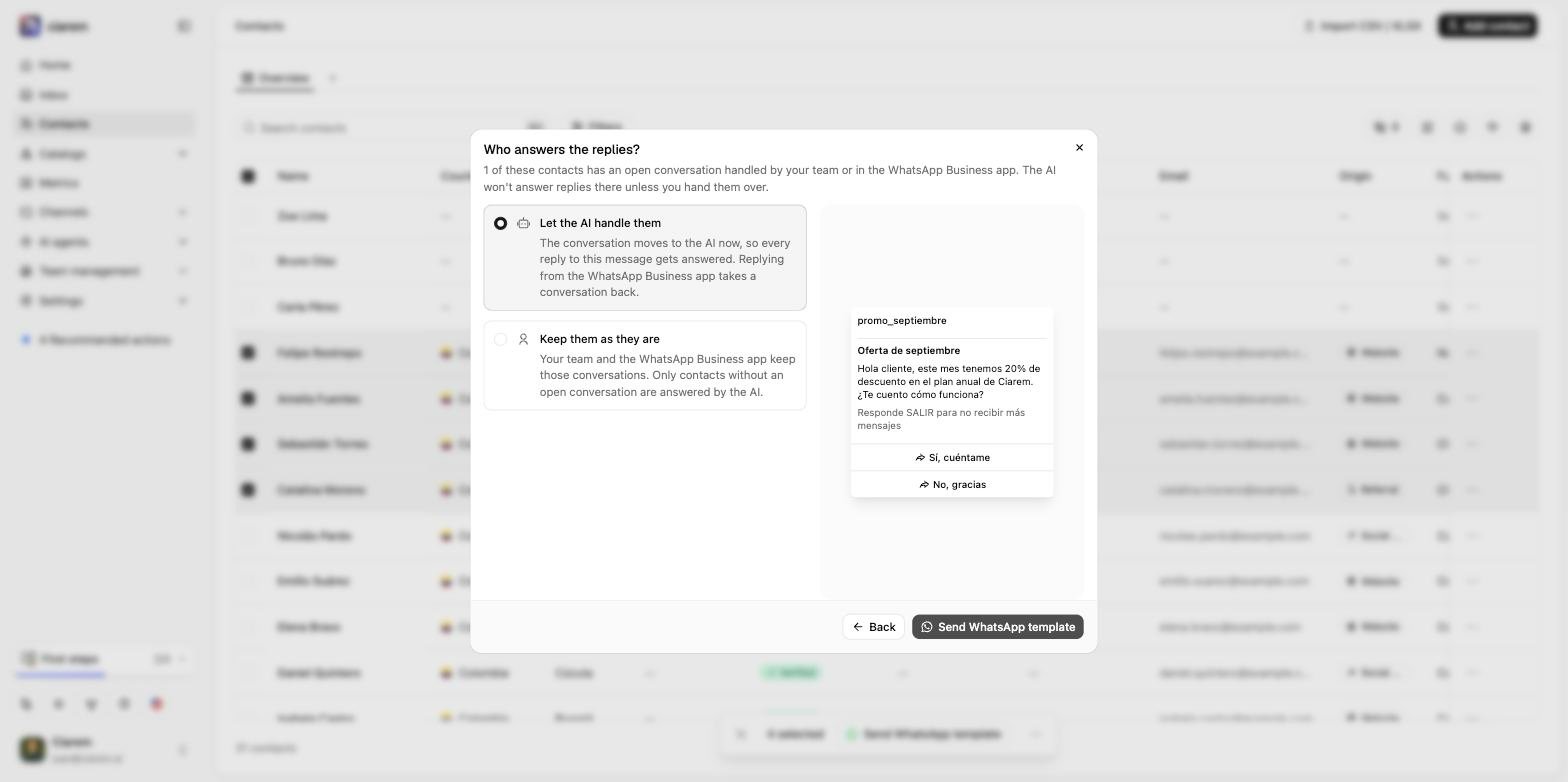
5
Send
The batch is checked against your WhatsApp wallet before anything is queued.
Track it
Every bulk send appears under Channels > WhatsApp > Broadcasts with a live status:- In progress: still sending.
- Completed: every recipient reached.
- Stopped, low balance: the wallet ran out mid-send. Top up and send the rest as a new broadcast. Every admin also gets an email naming the broadcast that stopped. Only the first broadcast stopped this way is emailed until the next top-up, so a run of automated sends on an empty wallet sends one email, not one each.
- Cancelled: you pressed Stop broadcast. Messages already sent cannot be unsent; the rest are not sent.