
The conversation list
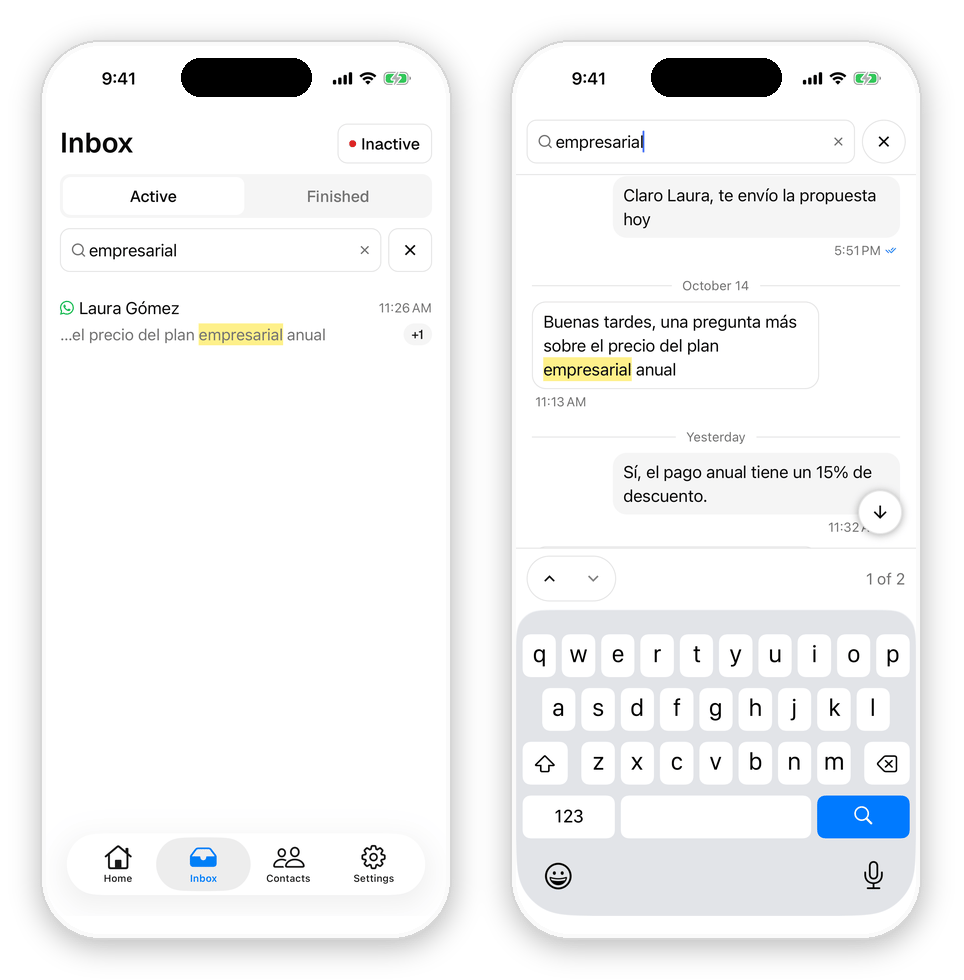
Each row shows the channel icon, the contact’s name, the last message (with a delivery tick when it was yours), the time, up to two tags, and a badge with the unread count. A small person icon on the right marks conversations assigned to someone else. Pull down to refresh; the list also updates live while the app is open.- Search by contact name, phone or handle, or by the text of any message in the conversation’s history, accents and capitals aside. Each result shows the newest matching message with the term highlighted, plus a +N badge when more messages match, and tapping it opens the chat at that message. When several messages match, the chat opens with its own search already filled in. While the box is focused and empty, your Recent searches are one tap away.
- Filters (the button beside the search box) opens a sheet where every tap applies immediately: Sort by recent or creation date, Date, Assigned to (admins), Channel, Status (Active, Unassigned, or WhatsApp expired), and Tags. The button shows a red dot while any filter is on. Clear filters resets it.
- Long-press a row to peek at the last few messages without opening the conversation or marking it read. Tap the peek to open it.
- The pill in the top-right corner is your session status: Active, Inactive, or On a break. It is the same availability that decides whether new conversations reach you (see After the handoff). Tap it to change.


Inside a conversation
The header shows the contact, the channel, and a live status line: Active · 25 min, or Resolved once finished. Tap the name to open the contact details. Whoever is answering is always shown. When the AI agent has the conversation, the composer is replaced by a panel that says so, with a Take over button. Tapping it makes you the handler and opens the composer. To hand the conversation back, tap the handler icon in the header (a robot when the AI is answering, a person when a human is). Choose Respond manually or Let AI respond, and, for the AI, whether it should Respond now (replying to the last message received) or Wait for the next message. Save changes applies it.

Writing a reply
The composer sends text as soon as you tap Send. Around it:- The paperclip attaches an image, a photo from the camera, or a document (up to 16 MB), with an optional caption before sending. When you have copied an image (a screenshot, say), the menu also offers Paste copied image, and holding the message field and tapping Paste attaches it too.
- The microphone records a voice note: record, listen back, then send or discard.
- Text formatting (bold, italic, strikethrough, lists) is available on WhatsApp and Messenger.
- Edit with AI rewrites what you typed: Improve writing, Make shorter, More formal, More friendly, or Fix spelling & grammar. Accept or discard the result.
- Internal note switches the composer to a note the contact never sees. The banner reminds you, and Save note posts it into the thread.
- Quick replies opens the saved replies you built on the web (see Quick replies): text replies, with an optional attachment, on every channel, and button or list messages on WhatsApp, sent in one tap with the contact’s fields filled in (anything Ciarem can’t fill, you are asked to type first). On WhatsApp, another button opens your WhatsApp templates (with a preview of the filled message).


Finish or transfer
Finish chat (from the … menu) closes the conversation and lets you set the contact’s Funnel stage in the same step. It is the same finish flow as the web, and, as on the web, a new message from the contact starts a fresh conversation. Transfer chat hands the conversation to a Member or a Team, with an optional internal note that is posted once the transfer goes through. Agents can transfer the conversations assigned to them; admins can transfer any conversation.
The contact panel and the history
Contact details has three tabs. Details shows the person’s phone, email, origin, and city, a View in CRM link that opens the full record on the web, the Funnel stage (tap to change it), and the conversation’s Tags (tap + to add one). Conversations lists every past session with this contact, each with the AI’s summary and a View conversation button. Activity is the contact’s timeline: stage changes, owner changes, templates sent, and so on. As on the web, the thread itself is the contact’s full history on that channel. Scrolling up takes you through earlier sessions, separated by “End of the conversation” / “Start of the conversation” markers and the AI’s recap of each finished session.