
The plans
The AI agent is included in every tier. Prices are in USD. Pay monthly, or pay annually and save 25%.
Every workspace starts with a 14-day free trial, no credit card required. The API is included in the trial, on a smaller request budget, and so is the HubSpot integration. Solo does not include HubSpot: when a trial continues on Solo, HubSpot stops syncing, and Solo can’t be chosen while HubSpot is connected. Disconnect it first, or pick Growth or Scale.
What the trial costs
Nothing from Ciarem. There is no card to enter and no platform fee during the 14 days, and everything you need to evaluate Ciarem is on: all channels, the AI agent and knowledge base, the API, and HubSpot. The only cost that can appear is Meta’s, for WhatsApp messaging, and to cover it the trial starts with a one-time $5 credit in your WhatsApp wallet. Meta’s charges pass through at cost, so that credit lasts as long as your WhatsApp volume allows. When it runs out, WhatsApp messages that carry a Meta cost are paused until you add credit (see The WhatsApp wallet below). Nothing is charged to you automatically, because there is no card on file. Instagram, Messenger, and website chat have no Meta cost, so they keep working.When the trial ends
The trial ends on its own after 14 days. Nothing is charged and there is nothing to cancel: with no card on file, the trial subscription simply closes. Your workspace is then locked and your agent stops answering until you choose a plan in Settings > Billing. Your data is kept: contacts, conversations, knowledge base, and agent configuration are all there when you come back. The lock does not touch your WhatsApp number or the WhatsApp Business app on your phone, and you can disconnect the channel from Ciarem at any time. A workspace that never chooses a plan is permanently deleted, with all its data, 30 days after the trial ends.What counts toward your messages
Your plan includes a monthly message allowance: 3,600 on Solo, 18,000 on Growth, and 36,000 on Scale. What counts is each outbound message sent from Ciarem, by your AI agent or by a teammate, across your connected channels, counted once it is delivered. Incoming messages from your customers do not count. Once you pass the allowance, each extra message is billed at your tier’s rate ($0.010, $0.007, or $0.004). Settings > Billing shows your current cycle’s usage against your allowance, a by-channel breakdown, and when it resets.The parts of your bill
- Platform fee: your plan price ($25, $79, or $199 a month, or 25% less paid annually). Covers your monthly message allowance, included seats, channels, and the AI agent.
- Extra messages: any messages beyond your plan’s monthly allowance, at your tier’s per-message rate.
- Extra seats: teammates beyond your plan’s included seats, at $15 per seat per month on every plan.
- WhatsApp costs: what Meta charges for WhatsApp messaging, paid from your WhatsApp wallet (see below). Instagram, Messenger, and website chat conversations have no Meta cost.
Adding and removing seats
You don’t buy seats ahead of time. When every seat on your plan is taken and you invite someone from Team management > Users, the invitation shows the price of one more seat. Choosing Add seat and invite adds the seat and charges it today for the rest of the current billing period, then $15 a month after that. During a free trial the seat is free until the trial ends. If the card is declined, no seat is added and no invitation is sent. Reactivating a deactivated user when every seat is taken works the same way. When you deactivate a user or revoke an invitation, Also remove their seat is checked by default, so your next bill charges one seat fewer. There’s no refund for the rest of the current period. Uncheck it to keep the seat for whoever replaces them: your next invitation uses it at no extra cost. You can also remove an unused seat at any time from the seats line in Settings > Billing. Included seats are never removed.The WhatsApp wallet
WhatsApp consumption is drawn from a prepaid balance shown in Settings > Billing, with the current cycle’s spend broken down by message category. Top it up with Add credit, or turn on auto-recharge so the wallet tops itself up when the balance drops below a threshold you set. If an automatic charge is declined, the wallet card tells you so you can fix the card before messages are affected. While a WhatsApp number is connected and the available balance is under $10, admins also see a banner at the top of every page with a link to top up. You can dismiss it, and it comes back the next time the balance runs low after a top-up. Under $1 it turns red and can’t be dismissed, and every admin gets one email: once the balance runs out, no WhatsApp message goes out, so the AI and your team can’t reply and broadcasts and templates stop. The banner and the email both stay off while auto-recharge is on and working. Review every movement under Transactions: each top-up is its own row, and WhatsApp charges are grouped into one row per day (with the number of charges), filterable by date. Every top-up, manual or automatic, is also an invoice paid on the spot, so you find it with your other invoices under Manage billing. Both Add credit and auto-recharge let you pick a card already saved on your account, including the one that pays your subscription (marked Subscription), or Add a new card. You don’t need a manual top-up before turning on auto-recharge: choose its card when you turn it on. The wallet can use a different card from your subscription, and a card added or picked in the wallet never changes the card that pays your subscription. When you top up with a card other than the one auto-recharge uses, tick Also use this card for automatic recharge to switch it; otherwise auto-recharge keeps its card. Your subscription’s renewal invoice also summarizes the wallet for the period that closed: a WhatsApp (Meta) usage line and the same amount as Already charged to your WhatsApp balance (they cancel out, since you already paid it from the wallet), plus a statement with the opening balance, top-ups, usage, and closing balance. The invoice total does not change. On Spanish and Portuguese workspaces, the invoice also carries a short glossary of the line names Stripe shows in English.
Refer a company
Every workspace has a referral link in the Refer a company card under Settings > Billing. Share it with another business. When a company that signed up through your link pays its first invoice, you receive one month of their plan fee as credit on your subscription, applied automatically to your next payment. A Growth referral earns $79 of credit, a Scale referral $199.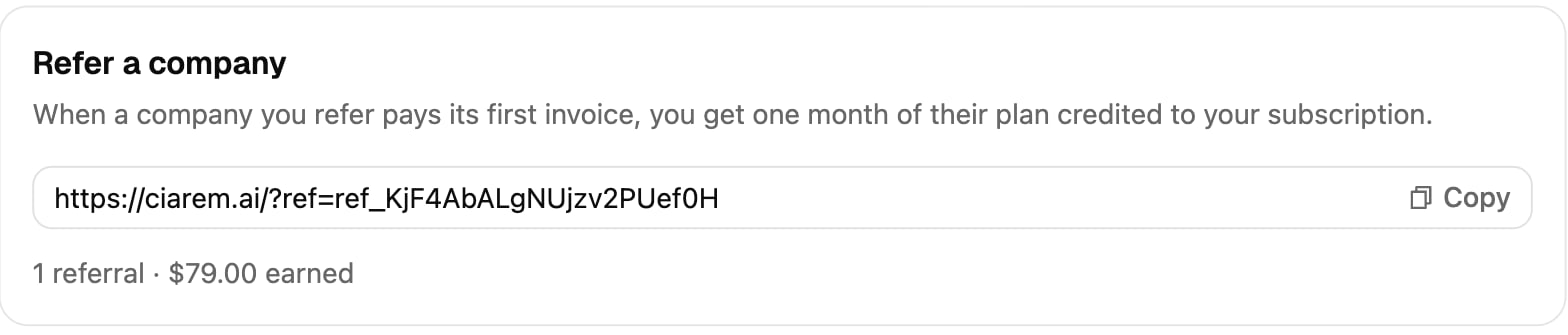
- The link is remembered for 30 days in the visitor’s browser, so a sign-up within that time counts even if it happens later.
- The reward is paid once per referred company, on its first paid invoice, and only for companies that sign up on their own through the link.
- The referred company gets no discount and no extra trial.
- Referring yourself does not pay off: the credit never exceeds what the referred company actually paid, and workspaces that share a member or a billing email are excluded.