
Set up a survey
1
Open the survey settings
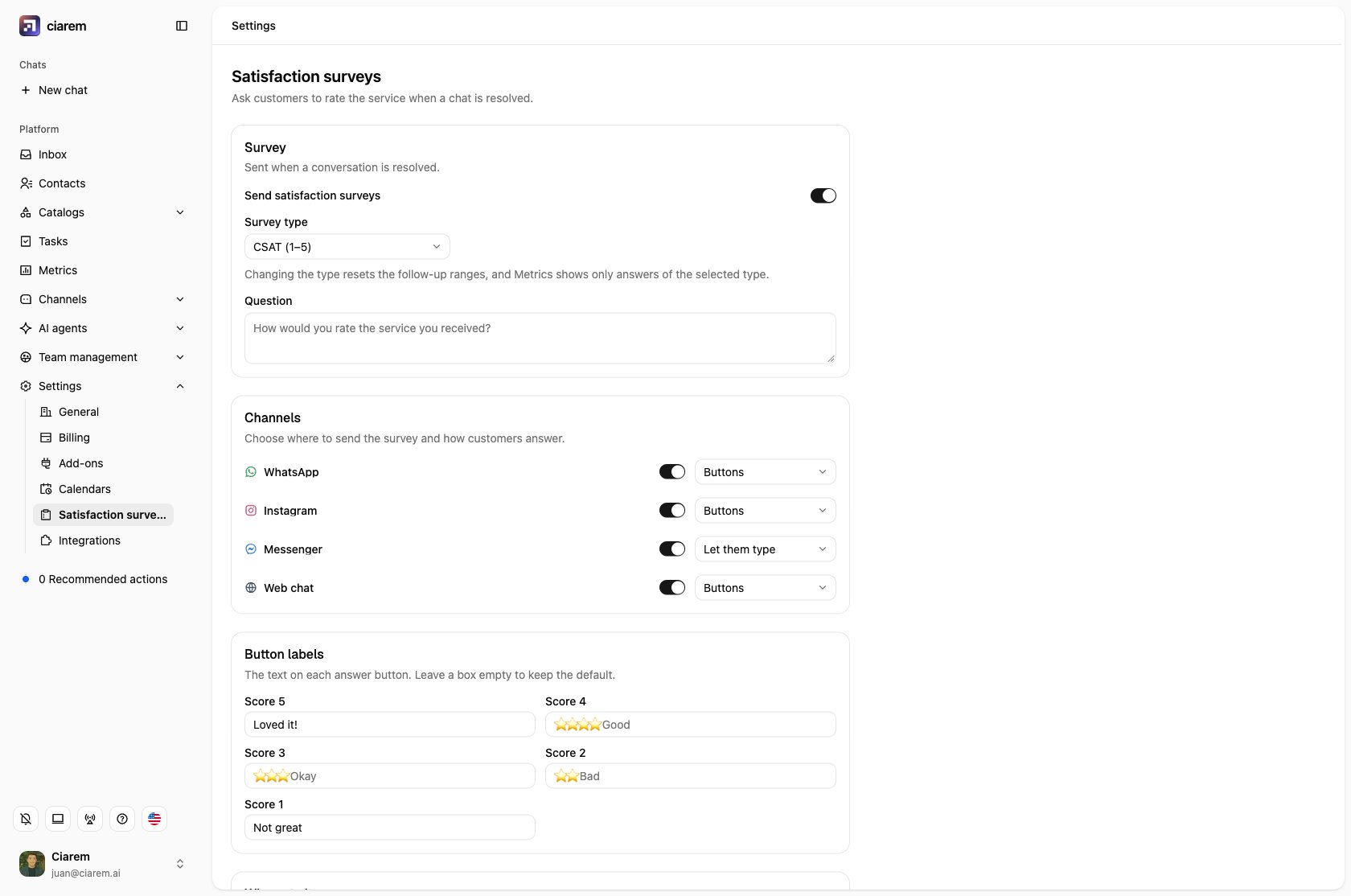
Go to Settings, then Satisfaction surveys, and turn on Send satisfaction surveys. While it is off, the rest of the settings are hidden and nothing is sent.
2
Pick the survey type
- CSAT (1–5) asks how satisfied the customer was. The default question is “How would you rate the service you received?”
- NPS (0–10) asks how likely they are to recommend you. The default question is “How likely are you to recommend us to a friend or colleague?”
3
Choose the channels and how customers answer
Under Channels, switch on each channel that should send the survey, and pick How customers answer:
- Buttons: the customer taps a score. WhatsApp shows a list, Instagram and Messenger show quick-reply buttons, and the website chat shows chips. The highest score is always first.
- Let them type: a plain message that ends with “Reply with a number from 1 to 5” (or 0 to 10). Use it when buttons feel like too much.
- WhatsApp form (WhatsApp only): the customer taps Fill in and picks the score inside a WhatsApp form, with an optional comment box. An NPS form offers 0 to 10. The form is built from your survey settings and published to WhatsApp the first time you save; a line under the channel tells you whether it is published or why it isn’t. If the form can’t be sent, the customer gets the list instead, so no survey is lost.
4
Choose who gets it
Under Who gets it, leave Teams on All teams, or pick the teams whose resolved chats should be surveyed. Switch on Also for chats closed by the AI to survey customers whose chat the AI agent resolved on its own.
5
Decide what to reply to each score
See Follow-up by score below, then click Save.
On WhatsApp, an NPS survey with Buttons shows 1 to 10: WhatsApp lists hold at most ten options. With Let them type or WhatsApp form, customers can answer 0. Instagram and Messenger show buttons only in their phone apps. On a computer, customers see the question and can type the number.
WhatsApp form needs the WhatsApp forms switch on for your WhatsApp number; see Turn on WhatsApp forms on a number if the settings page says they aren’t enabled. Meta also publishes WhatsApp forms only for a verified business: until yours is verified, the WhatsApp form option is greyed out and a tooltip says why. The form appears under Channels, then WhatsApp, then Manage forms marked From surveys; it is read-only there and changes whenever you save the survey.
Customize the button text
When a channel answers with Buttons or WhatsApp form, a Button labels card appears with one box per score, highest first. Type your own text (“Loved it!”, “Not great”) or leave a box empty to keep the default (”⭐⭐⭐⭐⭐ Excellent” for CSAT, the number for NPS). Labels are up to 20 characters, the most Instagram and Messenger show on a button, and they apply to every channel’s buttons and to the options in the WhatsApp form. Changing the survey type clears them. You don’t need to map anything: each button carries its score, so a tap is always recorded correctly, whatever its text.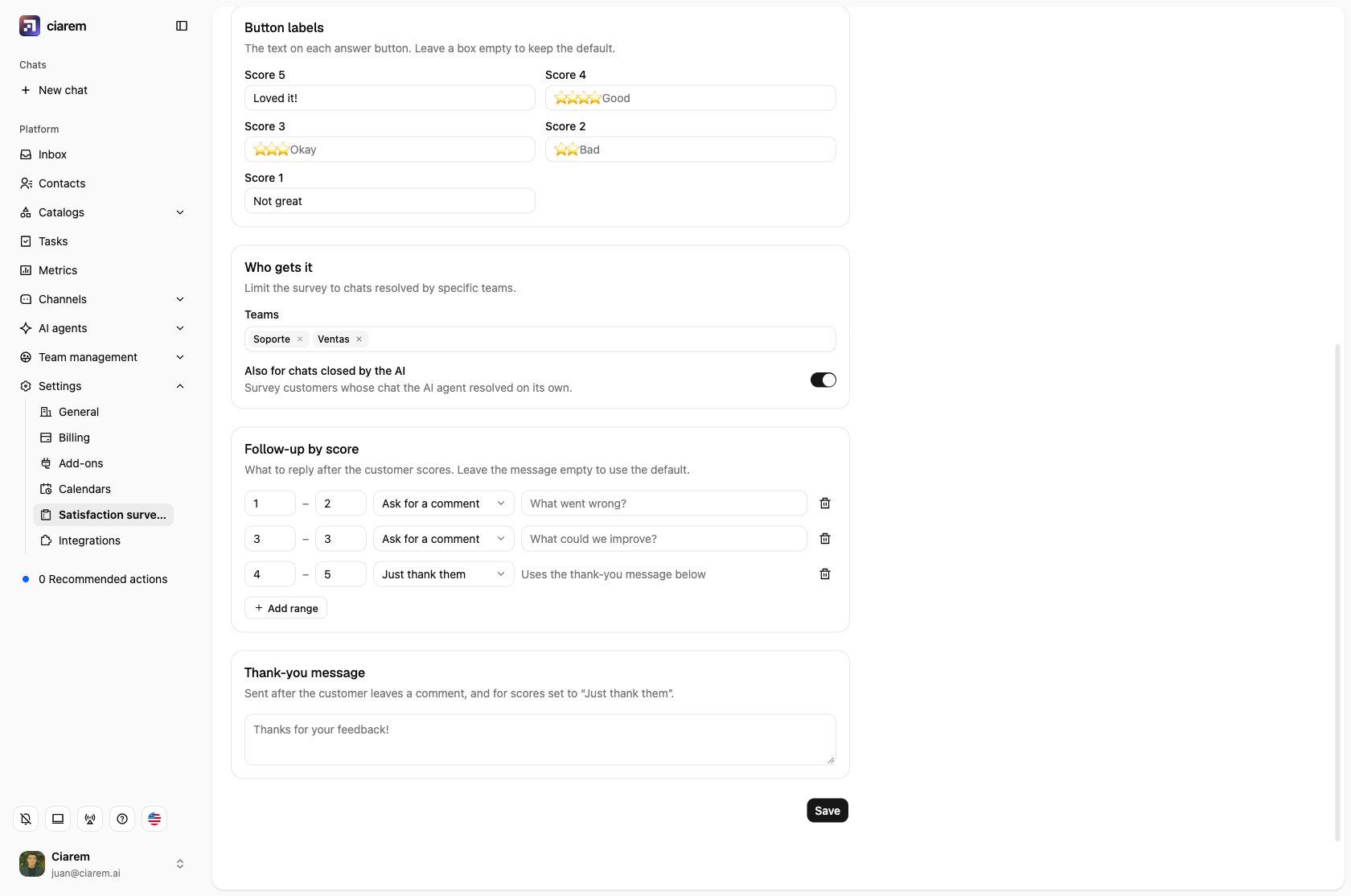
When a survey is sent
A survey goes out when a conversation is resolved, either by a teammate finishing the chat or, if you switched it on, by the AI. Each conversation is surveyed at most once, and only if:- surveys are on, and the conversation’s channel is switched on under Channels;
- the conversation belongs to one of the selected teams (or All teams is selected).
What customers can answer
- A tap, a number, or a button’s text. A tapped button, a number on its own (
4), a score out of the scale (4/5), stars (⭐⭐⭐⭐), or the text of a button typed out (“Loved it”, “excellent”) all count as the score. Capitals, accents and emojis don’t matter. - A score with words. “4, the agent was quick” records the score and the comment.
- Something else entirely. If the customer writes about something new (“do you have this in blue?”), it is not taken as an answer. It opens a new conversation like any other message, so nobody misses it.
Follow-up by score
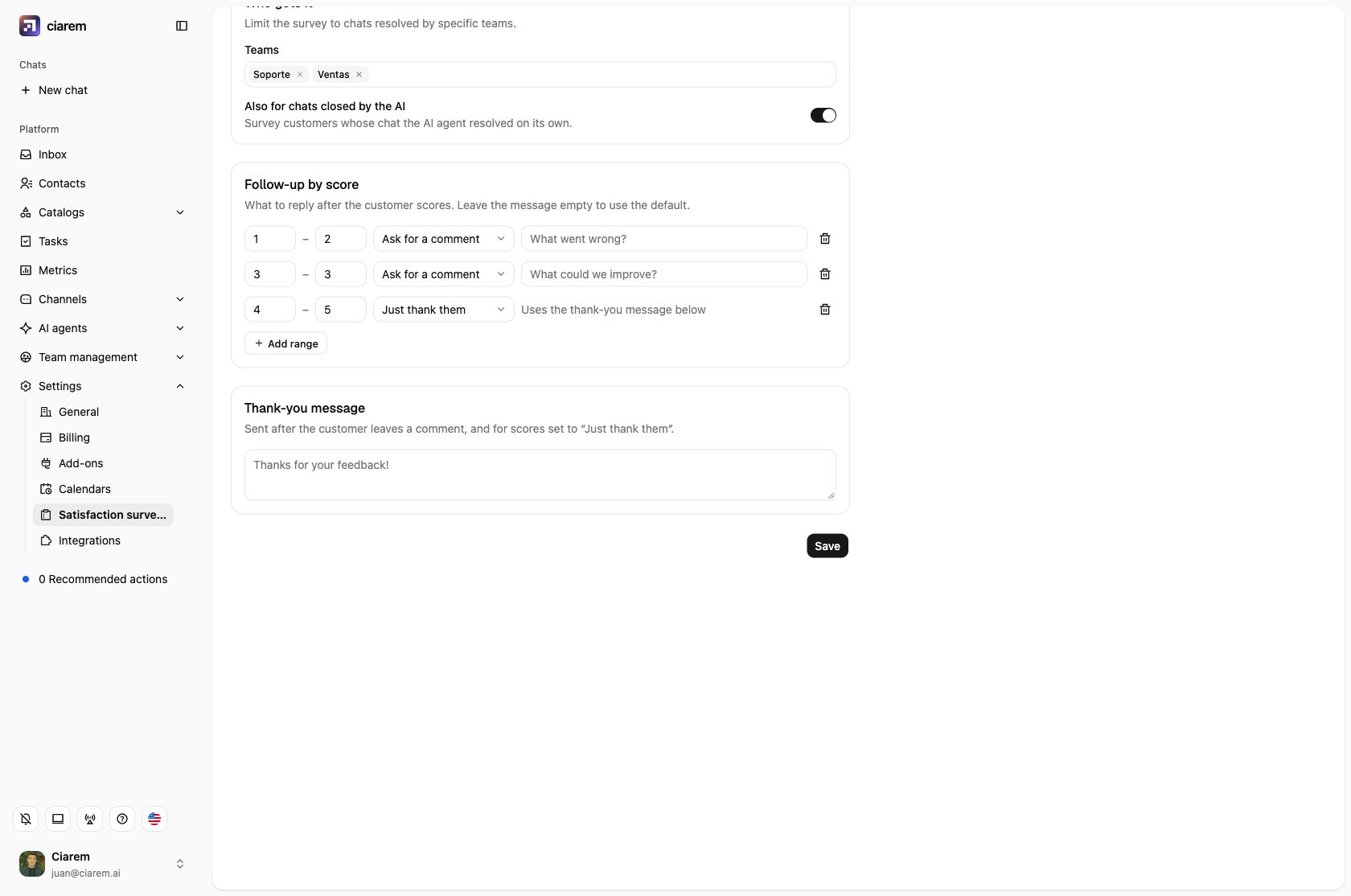
You decide what Ciarem replies after the score, per range of scores. Each range has a From score, a To score, and a Follow-up:- Ask for a comment sends your Message (or the default) and waits up to 1 hour for the customer’s reply, which is saved as the comment.
- Just thank them sends the Thank-you message at the bottom of the page.
Use Add range and Remove range to change them. Ranges can be a single score (for example 1 to 1, 2 to 2, and so on), but together they must cover every score exactly once: you cannot save while a score has no follow-up or two ranges overlap.
The Thank-you message is sent after a customer leaves a comment, and for scores set to Just thank them. Leave it empty to send “Thanks for your feedback!”
Test it in the playground
Try the whole survey before a customer sees it, in the playground:1
Pick the channel
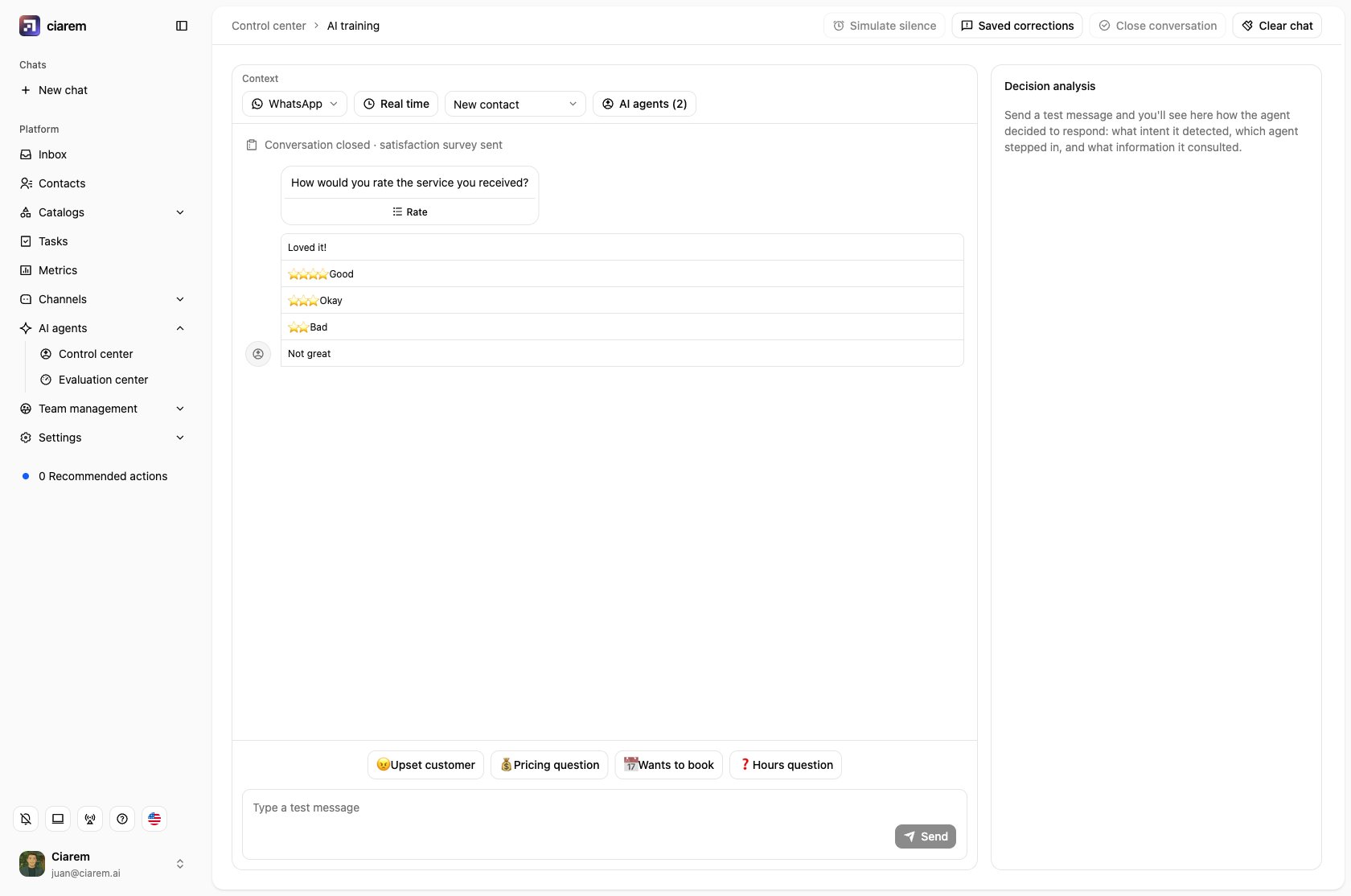
Open the playground and choose the channel to test. The survey follows that channel’s settings: buttons or typed answers, and your button text.
2
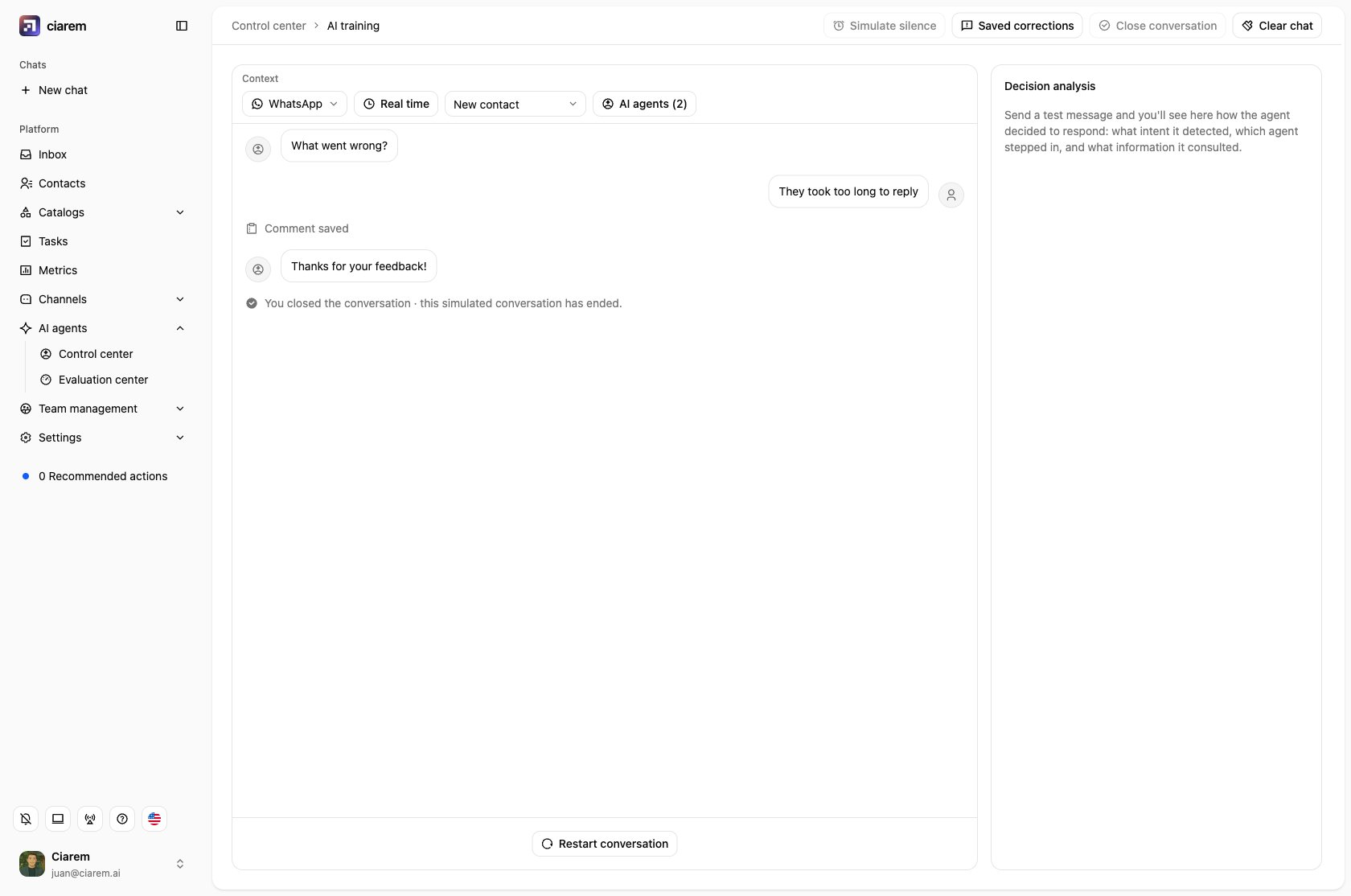
Click Close conversation
You can chat with the agent first or close right away. If surveys are on for that channel, the survey arrives the way customers get it: a list on WhatsApp, buttons on Instagram, Messenger and web chat, or a question to answer by typing.
3
Answer it
Tap a button or type an answer. A small note shows what happened (Score 2 recorded, Comment saved), followed by the follow-up for that score: the comment question, or the thank-you message. Text that isn’t an answer shows Not a survey answer and ends the test: in a real chat, that message would open a new conversation.
4
Restart to test again
After the thank-you (or a reply that isn’t an answer), the chat is closed and you can’t send more messages, like a transferred conversation. Click Restart conversation to start over.
See the results
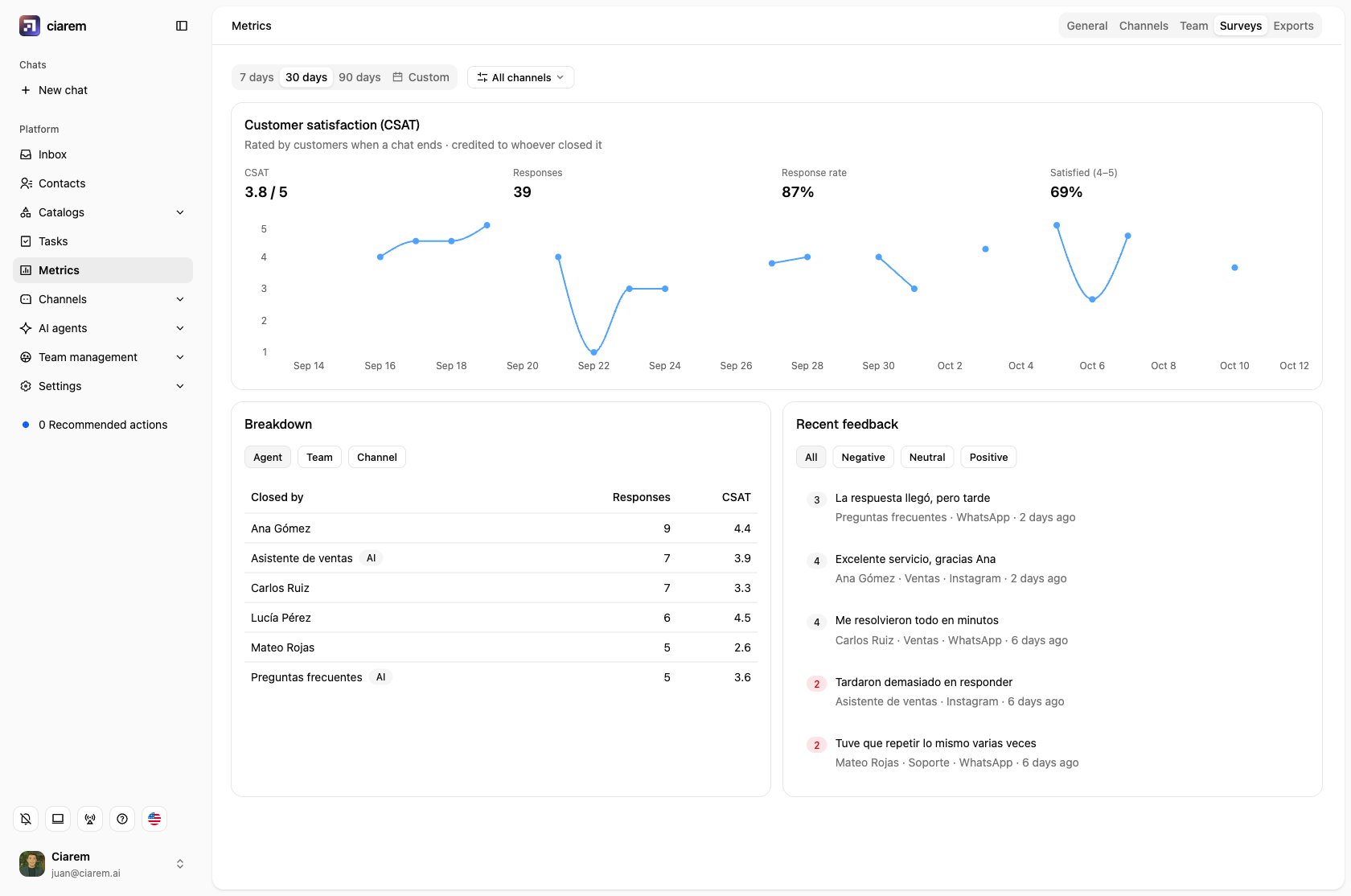
Survey results live in Metrics. They follow the date range and channel filter at the top of the page.- General tab: a Customer satisfaction (CSAT) or Net Promoter Score (NPS) card with the score, the number of responses, the Response rate, the share of satisfied customers (CSAT) or the promoter, passive, and detractor split (NPS), and a trend over time. View details opens the Surveys tab.
- Surveys tab: the same card, plus:
- Breakdown by Agent, Team, or Channel. Agents include each teammate and each AI agent (marked AI). Chats without a team appear as No team.
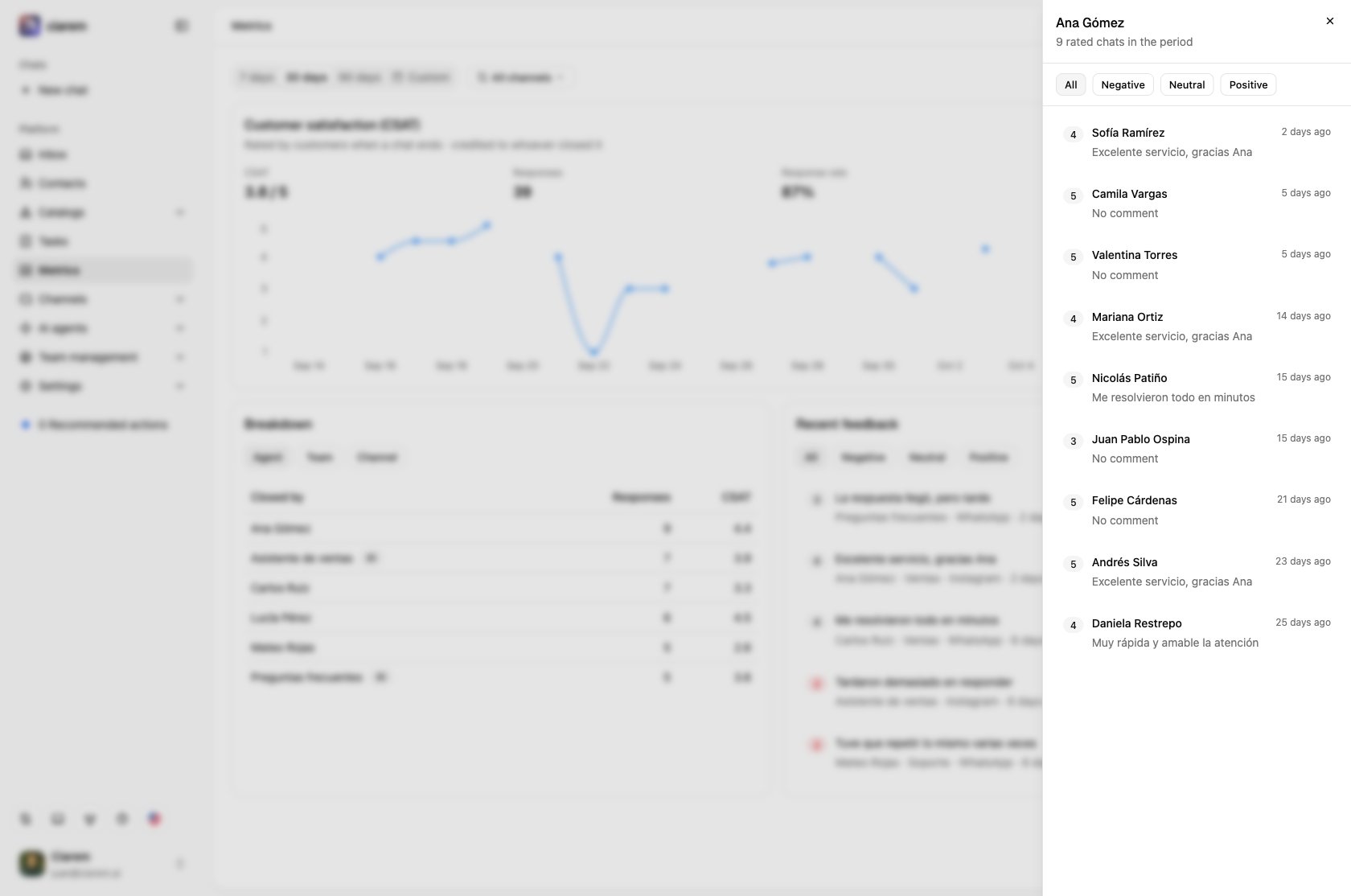
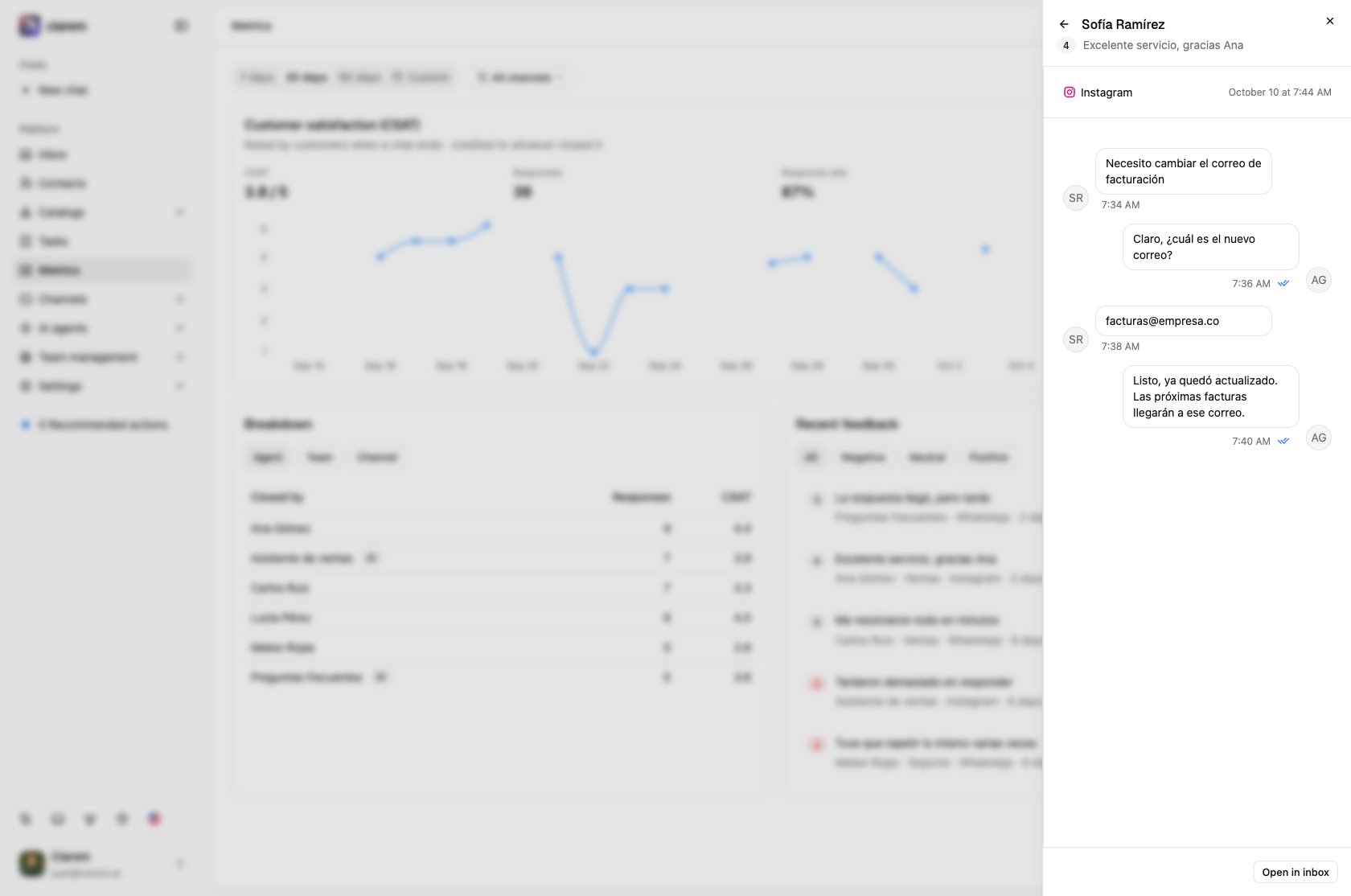
- Recent feedback: the latest comments with their score, agent, team, and channel, filterable by Negative, Neutral, or Positive.
Who gets the credit
Every answer is credited to the last touch: the teammate who resolved the chat, or the AI agent if the AI resolved it. If the AI handled the start of a chat and a teammate finished it, the score belongs to the teammate.When surveys are turned off
Turning surveys off stops new surveys, but the answers already collected stay in Metrics. The survey card shows Surveys are turned off with a button to the survey settings.Good to know
- Negative, neutral, positive: for CSAT, 1–2 / 3 / 4–5; for NPS, 0–6 / 7–8 / 9–10. These match the default follow-up ranges.
- Response rate is the share of sent surveys that got a score in the period. Skipped surveys (closed messaging window, failed send) are not counted.
- Survey settings and results are visible to admins. See Team roles.