
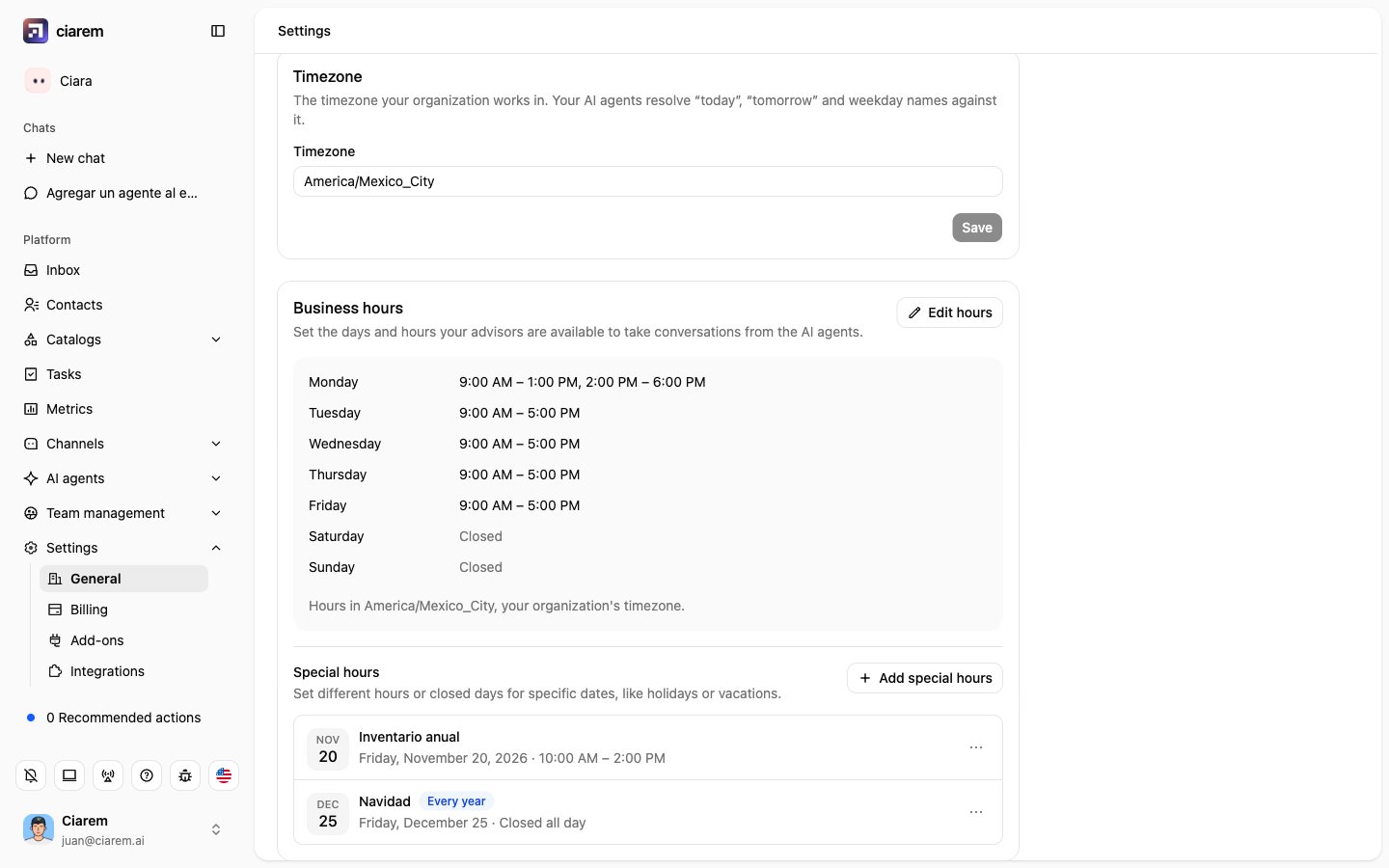
Set your weekly hours
1
Open the Business hours card
Go to Settings, then General, and find Business hours. Until you set them, the card says You don’t have business hours yet. Click Set up hours (Edit hours once they exist).
2
Choose the days and the hours
Each day of the week has a switch. A day switched off is a Day off (closed). A day switched on has one or more time ranges: use Add another time range for a split shift (9:00 to 13:00 and 15:00 to 19:00, for example), and Copy to other days to reuse a day’s hours on other days. The first time, the dialog opens on Monday to Friday, 9:00 to 17:00, with the weekend closed.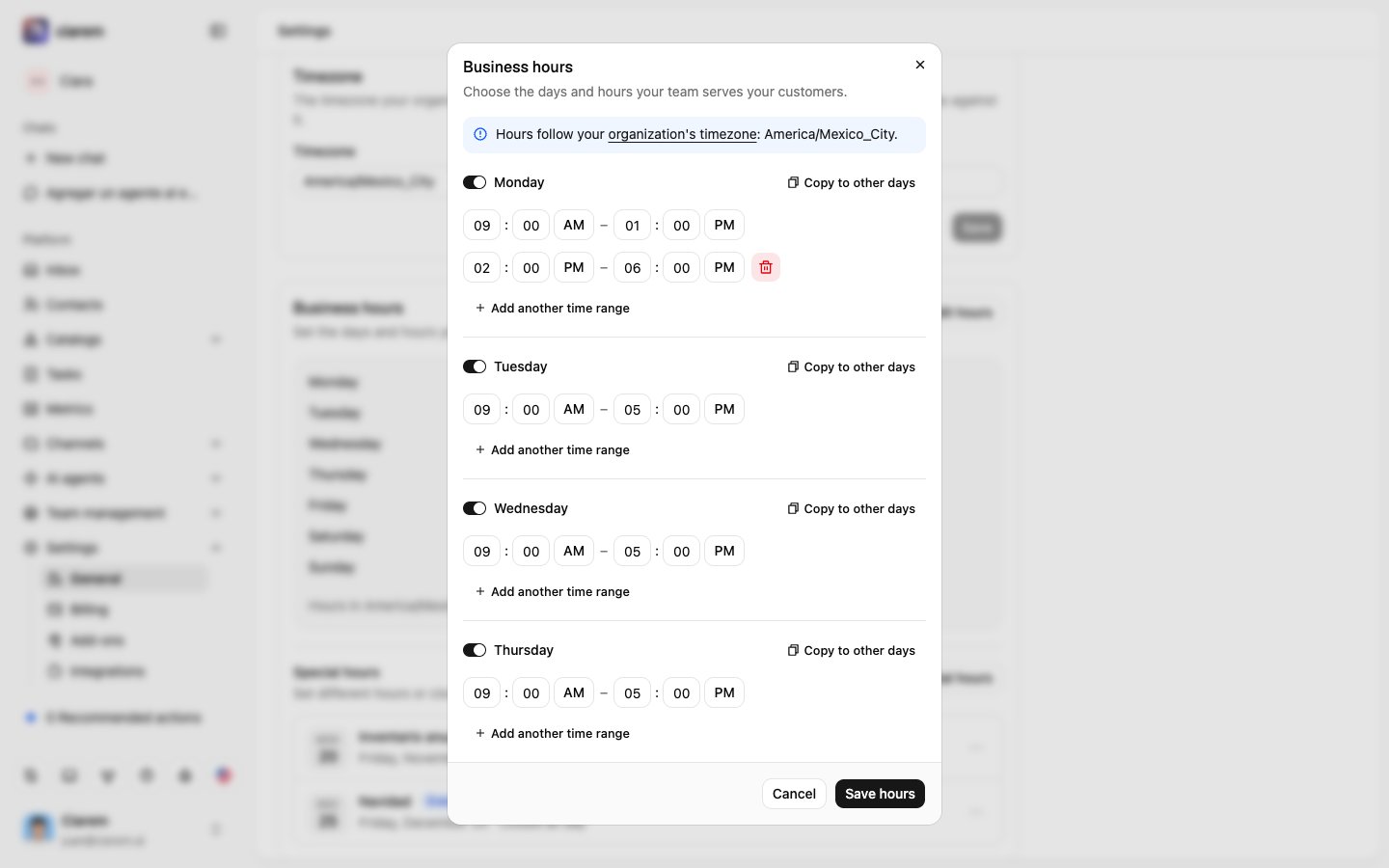
3
Save
Click Save hours. The card lists every day with its hours, or Closed.
Special hours: holidays and vacations
Once your weekly hours are saved, the card also shows Special hours: dates when your team won’t be available, or works different hours than usual. Click Add special hours and fill in:- Name: for example “Christmas”.
- Date: one day, or a date range (pick a second day to extend it). For a range, Which days does this apply to? lets you limit it to some weekdays, for example only the Saturdays of December.
- Business hours: Closed all day (your AI agents won’t transfer conversations to advisors on those dates) or Different hours, with their own time ranges.
- Repeat every year: applies the same dates automatically every year.
How transfer rules use them
In a transfer rule’s Hours step, pick Only during business hours. From then on, that rule:- transfers only inside your weekly hours, with your special hours applied;
- outside them, does not transfer: the AI agents keep attending the conversation. If the rule has custom messages, the agent sends your Message outside transfer hours on a working day, or your Message for non-working days on a closed day or a closed special date, and keeps helping.
Test it
In AI training, set Current time to a moment outside your hours (a Sunday, or a special date you are closed) and send a message that should transfer. The agent keeps the conversation and, if the rule has one, sends your off-hours message. Set a time inside your hours and the same message transfers. See The playground.Good to know
- Business hours only decide when transfer rules may hand a conversation to a person. They don’t switch the AI on or off, and they don’t decide when the agent may book appointments: that is each calendar’s own schedule. See Booking meetings.
- They don’t set anyone’s availability in the Inbox either. Keep someone Active during your hours. See After the handoff.