
How Ciarem finds your pages
Discovery runs while you wait in the dialog. It takes about ten seconds at most. Ciarem tries the most complete source first:- Your sitemap. Ciarem reads
robots.txtto find the sitemap it declares, then tries/sitemap.xmland/wp-sitemap.xml. Most sites (WordPress, Webflow, Shopify, Next.js and others) list every public page there, so this is the usual result. - Links on your pages. If there is no sitemap, Ciarem reads the links on the address you entered. Then it reads the links on the pages that address points to. It only follows links on the same site.
- Common pages. Ciarem also checks addresses most sites have, such as
/about,/pricing,/faq,/contact,/blog,/termsand/privacy. It keeps the ones that really exist. - The address you typed. If nothing else turns up, Ciarem still indexes that page on its own.
www.example.comandexample.comcount as the same site. If the one you typed does not respond, Ciarem tries the other one.- Ciarem lists up to 100 pages per site. It skips cart, checkout and login pages, admin areas, and files such as PDFs and images. To index a PDF, add it as a file source.
- Language versions of a page (for example
/es/and/pt/) are listed too. You decide which ones to keep.
Add a website
1
Open a knowledge base
Click Add information, then Website.
2
Name the source and type the address
Give the source a name and enter the address of the site.
3
Click Find pages
The pages appear grouped like folders. The address you typed comes first, then groups such as 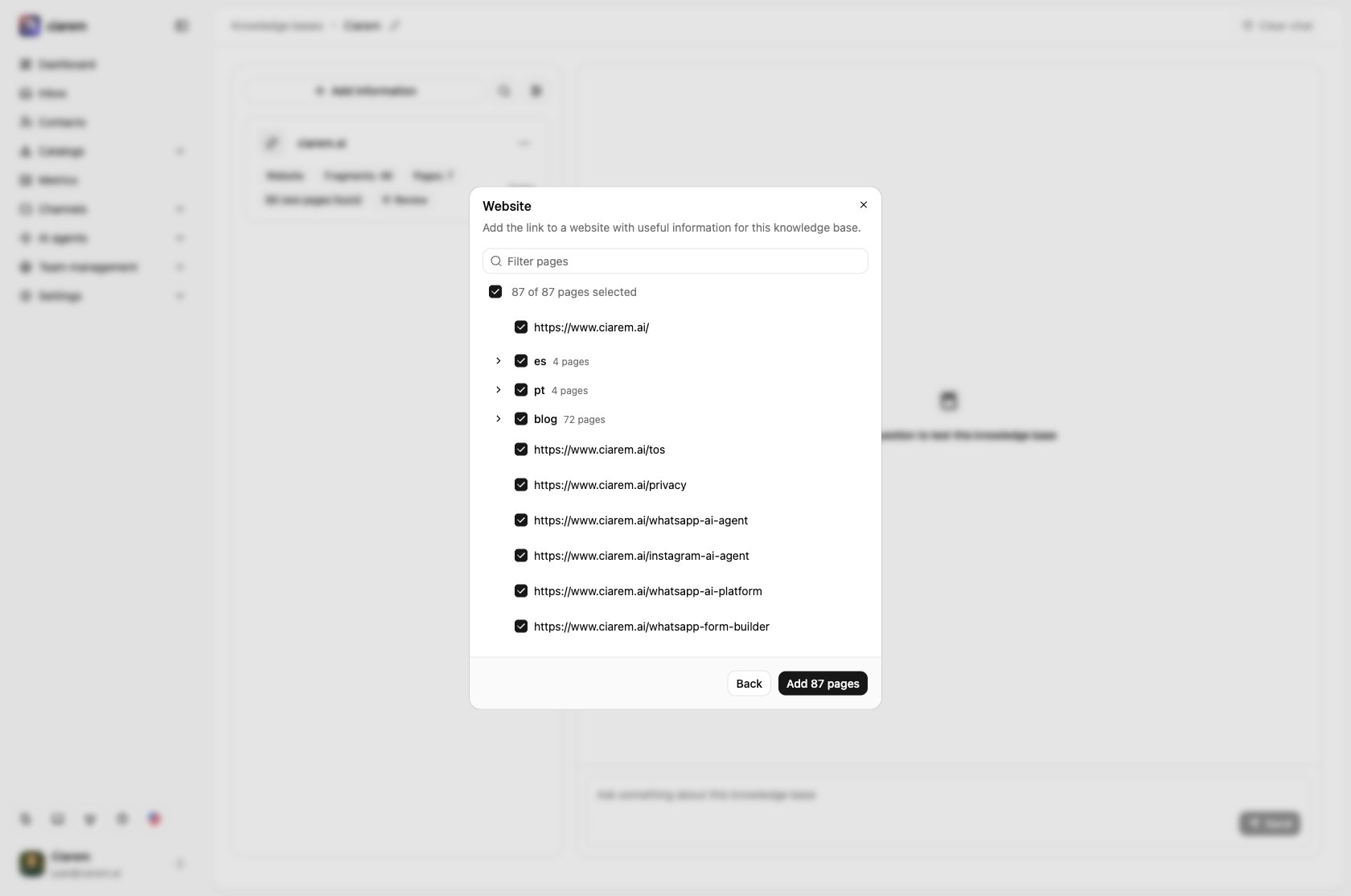
blog, es or pt, then single pages. All pages start selected.4
Choose the pages to index
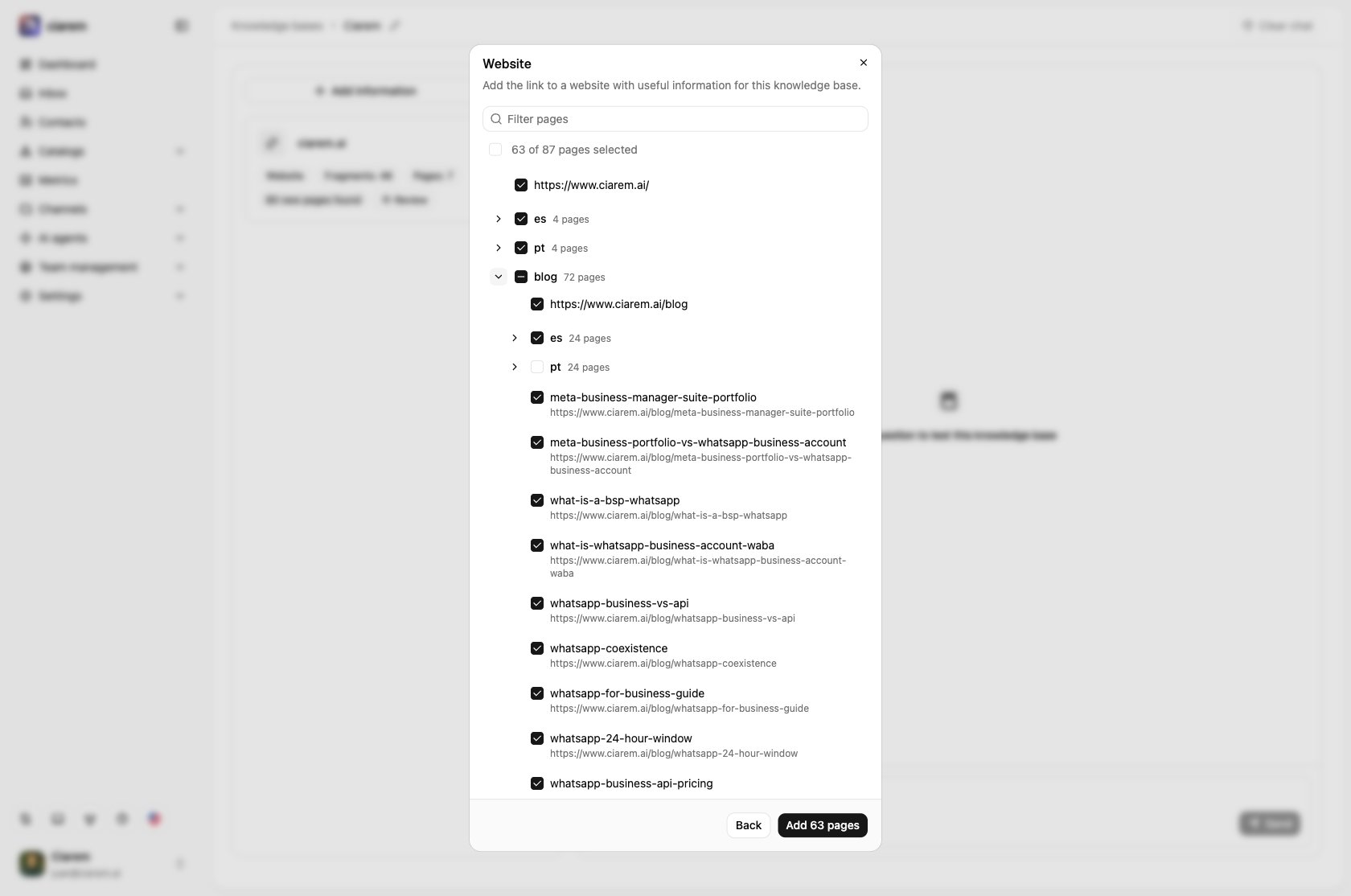
- The checkbox of a group selects or clears every page inside it. One click covers the whole blog, or only its Portuguese posts. The checkbox shows a dash when only some pages in the group are selected.
- Click the arrow next to a group to open it and pick individual pages.
-
Use the filter box to find a page by name or address.
5
Click Add N pages
The counter shows how many pages you are about to add. Click Add N pages to finish.
What happens after you add it
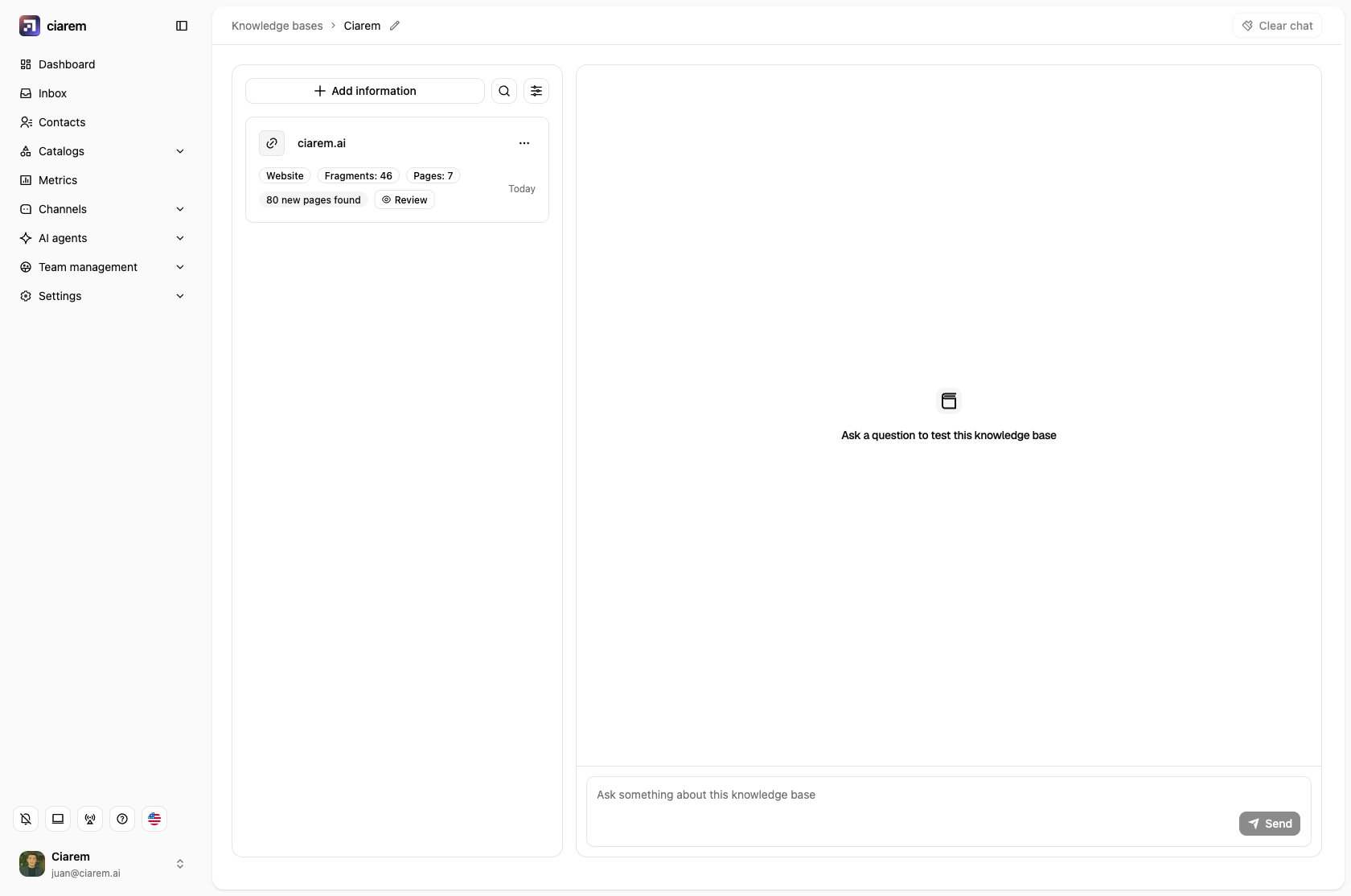
Ciarem fetches and indexes each page separately. The source card shows the number of pages and fragments. To see every page and its state, open ⋯ → See pages:- Indexed: the page is part of the knowledge base.
- Indexing: the page is still being processed.
- Failed: the page could not be indexed. The list shows why. For example: the page could not be reached, the site answered with an error, the page is not HTML, it has no readable text, it needs JavaScript to show its content, or the site blocked the request.

Keeping it up to date: the weekly recrawl
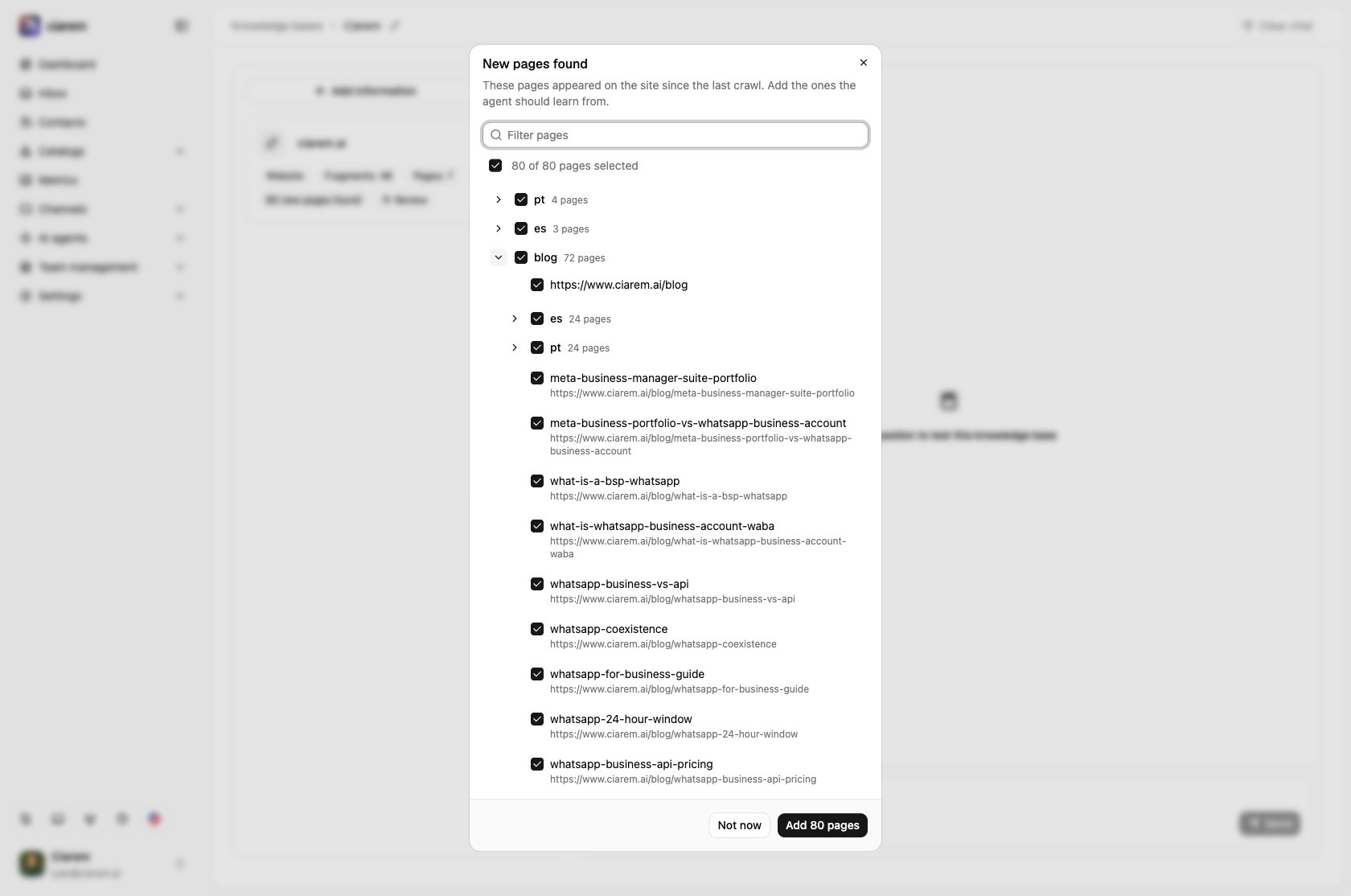
Once a week, Ciarem visits every page of the source again:- Pages that did not change stay as they are. Ciarem compares the text of the page with the version it indexed, so it only re-indexes a page when the content actually changed.
- Pages that changed are re-indexed one by one. The other pages are not touched.
- Pages that fail keep the content they had. They are marked as failed in the page list. A temporary outage never removes answers your agent already gives.
Good to know
- Website sources created before this feature keep their single page. To index the whole site, add it again as a new website source and delete the old one.
- Discovery only reads public pages. Pages behind a login or a paywall are not found.
- The weekly recrawl runs on its own. There is nothing to schedule.