> ## Documentation Index
> Fetch the complete documentation index at: https://help.ciarem.ai/llms.txt
> Use this file to discover all available pages before exploring further.
# WhatsApp marketing opt-out
> How a customer stops your WhatsApp promotions, what Ciarem blocks once they do, and how your team sees and changes it.
A customer can ask to stop receiving your promotions on WhatsApp. Once they do, the contact is marked **Opted out** and Ciarem refuses to send them any **marketing** [template](/channels/message-templates). The refusal happens before the message reaches Meta, so nothing is sent and nothing is charged to your WhatsApp wallet.
## What is blocked, and what is not
| Message | Opted-out contact |
| - | - |
| **Marketing** templates (promotions, offers, re-engagement) | Blocked |
| **Utility** templates (order updates, reminders) | Still sent |
| **Authentication** templates (one-time codes) | Still sent |
| Replies inside the [24-hour window](/billing/whatsapp-costs-and-templates), from your team or the AI | Still sent |
The opt-out only covers WhatsApp marketing. The customer can still write to you, and you can still answer.
## How a contact becomes opted out
There are three ways, and the contact shows which one applied.
### The customer taps your opt-out button
Add a quick-reply button such as "Stop promotions" to a marketing template and mark it as the opt-out button (see [Add an opt-out button](#add-an-opt-out-button-to-a-template) below). When a customer taps it:
1. The contact is marked **Opted out**.
2. The customer gets one fixed confirmation: *"Done, you're unsubscribed. You won't receive promotions from us on WhatsApp anymore."* It is sent in English, Spanish or Portuguese, matching the template's language (or your workspace's language when the template is in another one), and the wording cannot be changed.
3. The AI does not answer the tap, so the customer gets that one reply and nothing else.
The tap appears in the [Inbox](/using-ciarem/inbox) like any other button reply.
### The customer stops marketing messages in WhatsApp
WhatsApp itself lets a person stop marketing messages from a business. Ciarem marks the contact as opted out when Meta reports it, at the latest the first time Meta refuses one of your marketing sends for that reason. If the customer later turns your marketing messages back on in WhatsApp, Ciarem clears the opt-out on its own.
### Your team marks the contact
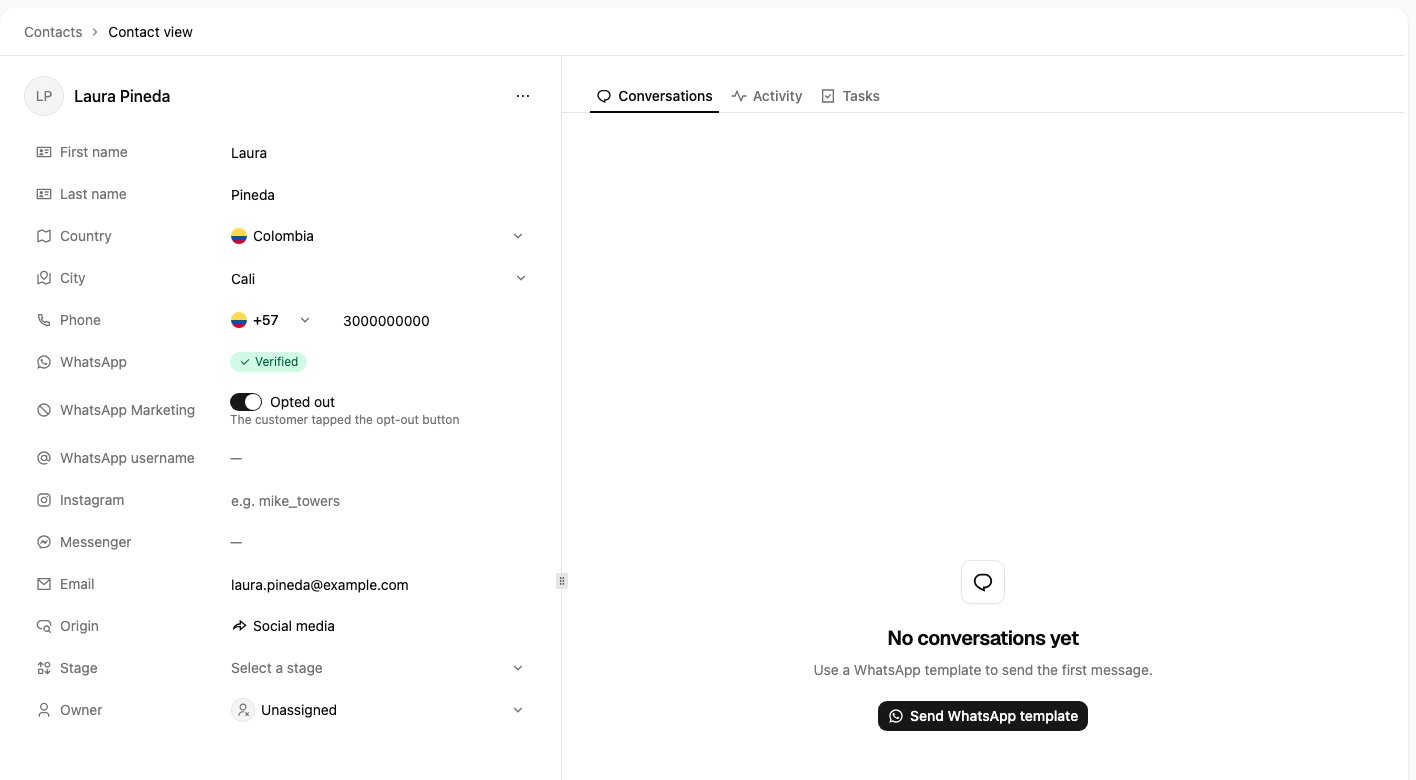
Open the contact in **Contacts** and turn on the **WhatsApp Marketing** switch. Use this when a customer asks in any other way: in a chat, on a call, in person.
## See who opted out
* **On the contact**: the **WhatsApp Marketing** field shows **Opted out** or **Receives marketing**, and where an opt-out came from: *The customer tapped the opt-out button*, *The customer stopped marketing messages in WhatsApp*, or *Set by your team*. The contact's activity timeline records each change and when it happened.
* **In the contact list**: filter by **WhatsApp Marketing** (**Opted out** or **Not opted out**), and add the **WhatsApp Marketing** column from the column manager. The column is hidden by default. The filter is kept in saved views.
* **In the Inbox**: the contact details panel shows the opt-out. To change it, open the contact in Contacts.
* **In exports**: the CSV export includes the field.
 ## Opt a contact back in
Turn the **WhatsApp Marketing** switch off on the contact. Only do this when the customer has asked to receive your promotions again.
An opt-out set by the button or by your team stays until someone on your team clears it. Only an opt-out that came from WhatsApp's own setting is cleared automatically, when the customer turns your marketing messages back on there.
## What happens when you send
* **To one contact**: the send dialog shows *This contact opted out of marketing* and marketing templates cannot be sent. Utility and authentication templates still can.
* **In a [broadcast](/channels/broadcasts)**: opted-out contacts are skipped and the rest of the batch goes out. The broadcast's Overview lists them under **Opted out of marketing**, and they are not charged. To leave them out up front, filter your audience by **WhatsApp Marketing: Not opted out** before you select it.
* **From automations**: a Meta Lead Ads auto-reply, a HubSpot workflow or a Shopify Flow that sends a marketing template skips an opted-out contact and reports that as the reason.
* **From the API**: see the [changelog](/api-reference/changelog).
## Add an opt-out button to a template
The button is available on **marketing** templates only, and a template can have one. Buttons on carousel cards cannot be opt-out buttons.
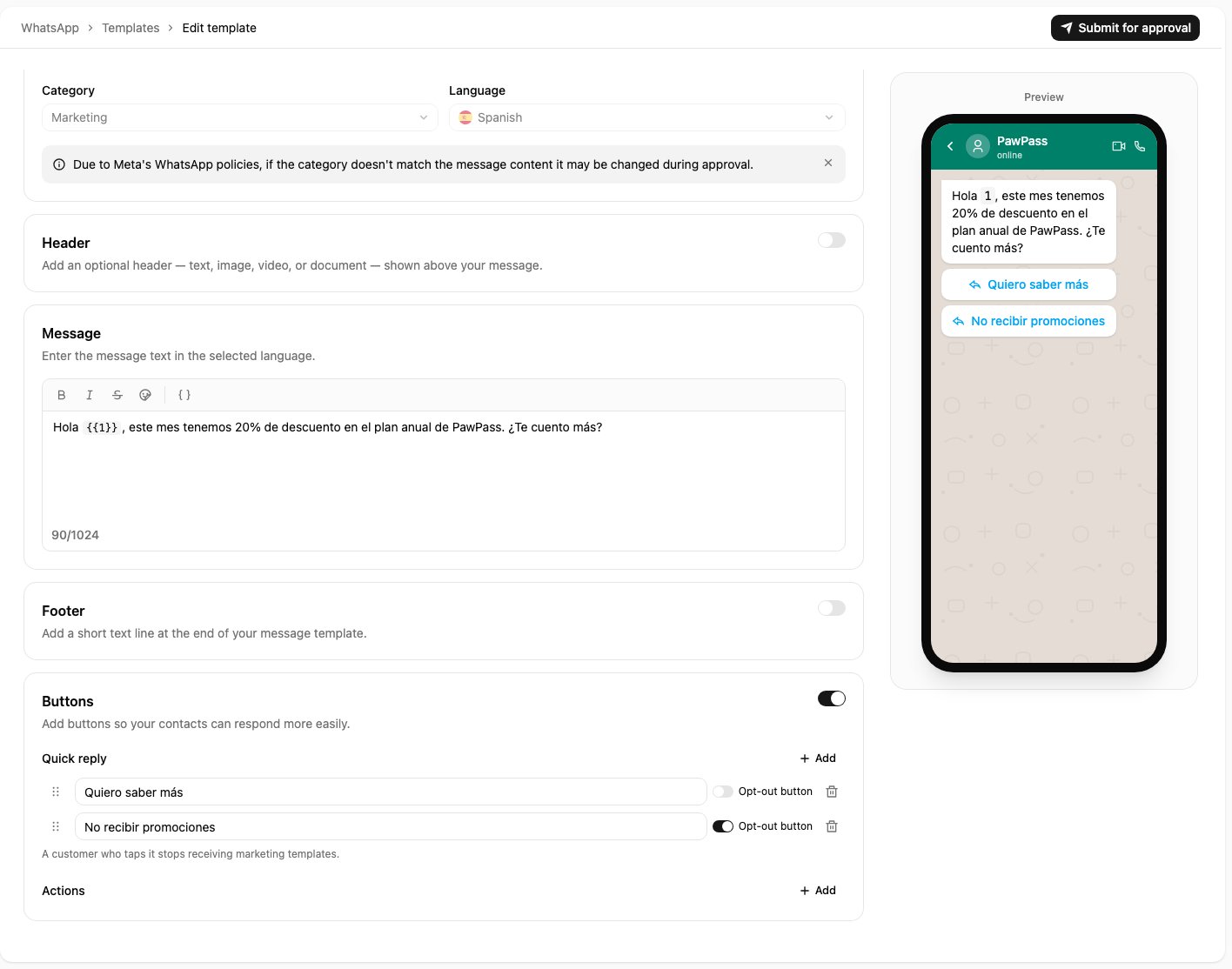
**On a new template**: in the template editor, add a quick-reply button, give it a clear label such as "Stop promotions", and turn on **Opt-out button** for it.
## Opt a contact back in
Turn the **WhatsApp Marketing** switch off on the contact. Only do this when the customer has asked to receive your promotions again.
An opt-out set by the button or by your team stays until someone on your team clears it. Only an opt-out that came from WhatsApp's own setting is cleared automatically, when the customer turns your marketing messages back on there.
## What happens when you send
* **To one contact**: the send dialog shows *This contact opted out of marketing* and marketing templates cannot be sent. Utility and authentication templates still can.
* **In a [broadcast](/channels/broadcasts)**: opted-out contacts are skipped and the rest of the batch goes out. The broadcast's Overview lists them under **Opted out of marketing**, and they are not charged. To leave them out up front, filter your audience by **WhatsApp Marketing: Not opted out** before you select it.
* **From automations**: a Meta Lead Ads auto-reply, a HubSpot workflow or a Shopify Flow that sends a marketing template skips an opted-out contact and reports that as the reason.
* **From the API**: see the [changelog](/api-reference/changelog).
## Add an opt-out button to a template
The button is available on **marketing** templates only, and a template can have one. Buttons on carousel cards cannot be opt-out buttons.
**On a new template**: in the template editor, add a quick-reply button, give it a clear label such as "Stop promotions", and turn on **Opt-out button** for it.
 **On a template you already have**, including ones created in WhatsApp Manager:
Go to **Channels**, then **WhatsApp**, then **Templates**. Open the row's **···** menu and choose **View details**. This is an admin action.
Under **Opt-out button**, choose which of the template's quick-reply buttons is the opt-out. Choose **None** to remove it.
**On a template you already have**, including ones created in WhatsApp Manager:
Go to **Channels**, then **WhatsApp**, then **Templates**. Open the row's **···** menu and choose **View details**. This is an admin action.
Under **Opt-out button**, choose which of the template's quick-reply buttons is the opt-out. Choose **None** to remove it.
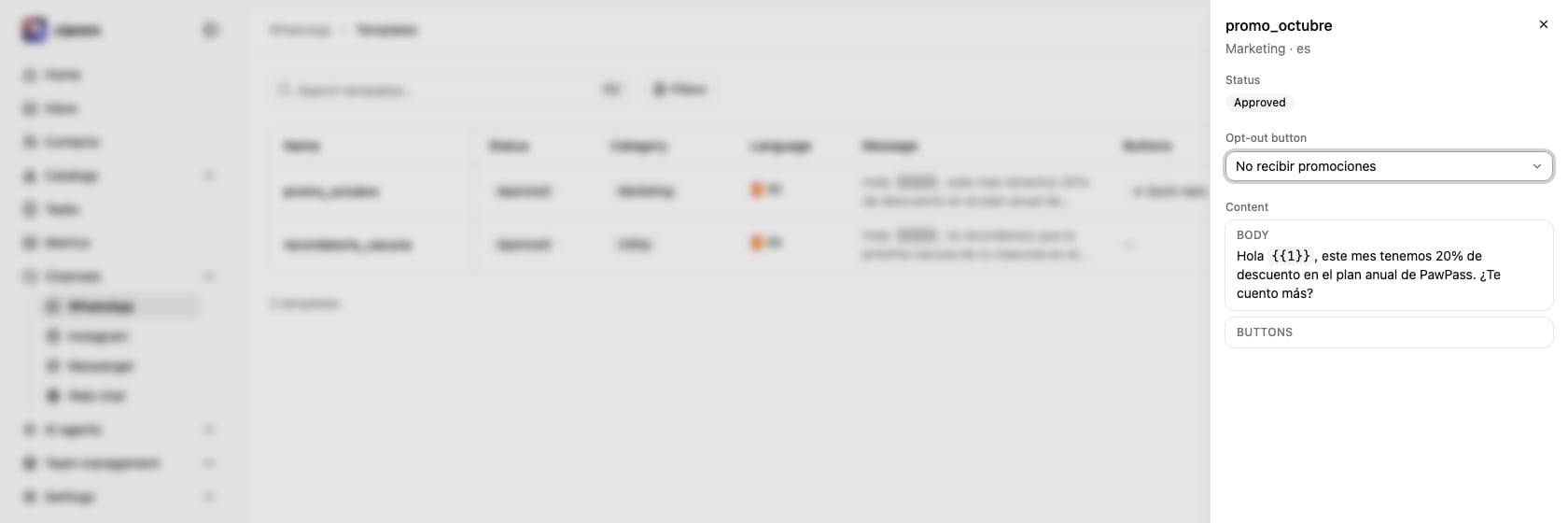 This does not send the template back to Meta for review, so it works right away.
If the template's buttons are later changed in WhatsApp Manager, or Meta moves the template out of the marketing category, the opt-out mark is removed. Check the template's details after such a change.
## Good to know
* Typing "stop" or "unsubscribe" in a chat does not opt the customer out. Only the opt-out button, WhatsApp's own setting, or your team does. If a customer asks in writing, mark the contact yourself.
* When two contacts are merged, the result is opted out if either one was.
* Deleting a contact also deletes its opt-out. If the same person is added or imported again later, they start as **Receives marketing**.
* The switch is in the web app. It cannot be changed in bulk, from a file import, or from the API.
* If your WhatsApp wallet is blocked for an unpaid balance, the opt-out is still recorded but the confirmation message is not sent.
This documentation is built and hosted on [Mintlify](https://mintlify.com), a developer documentation platform.
This does not send the template back to Meta for review, so it works right away.
If the template's buttons are later changed in WhatsApp Manager, or Meta moves the template out of the marketing category, the opt-out mark is removed. Check the template's details after such a change.
## Good to know
* Typing "stop" or "unsubscribe" in a chat does not opt the customer out. Only the opt-out button, WhatsApp's own setting, or your team does. If a customer asks in writing, mark the contact yourself.
* When two contacts are merged, the result is opted out if either one was.
* Deleting a contact also deletes its opt-out. If the same person is added or imported again later, they start as **Receives marketing**.
* The switch is in the web app. It cannot be changed in bulk, from a file import, or from the API.
* If your WhatsApp wallet is blocked for an unpaid balance, the opt-out is still recorded but the confirmation message is not sent.
This documentation is built and hosted on [Mintlify](https://mintlify.com), a developer documentation platform.